
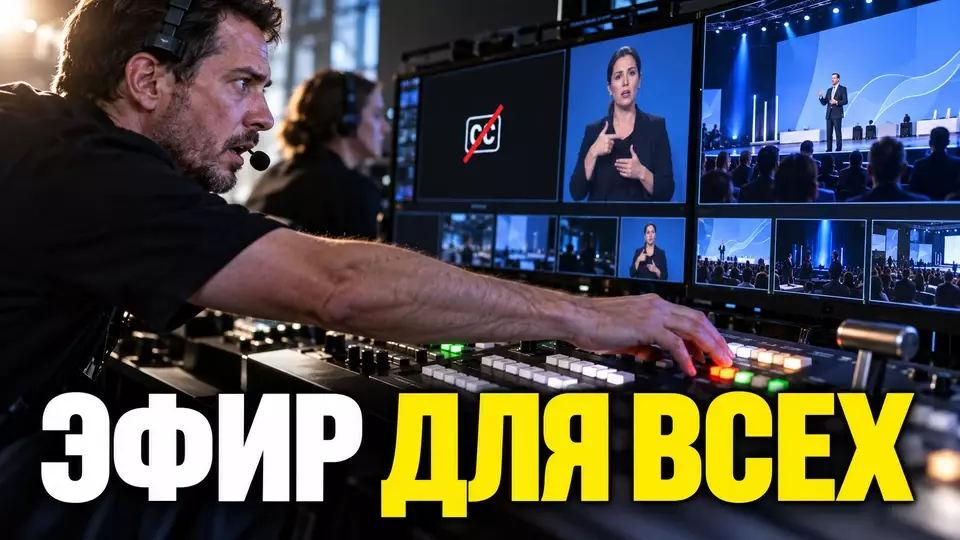
Accessible event streaming starts before choosing a platform. We break down registration, sound, subtitles, the interpreter, questions, rehearsal, and post-broadcast recording.
Accessible event streaming gives a participant several equal ways to get the content and ask a question. A single automatic subtitles button is not enough for this. At Aventura, we assemble the participant's entire journey: from registration to post-broadcast recording. Then we run through it end to end in rehearsal.
We publish practical breakdowns of corporate and business events in Aventura's Telegram channel. There you can follow new scenarios, technical solutions, and checklists.
What makes a stream accessible?
In short: Accessible event streaming lets you choose a convenient way: watch, listen, or read. The participant knows in advance which features are available and where to enable them. We test every feature in rehearsal, and after the broadcast we prepare the recording, chapters, and proofread text materials. The journey remains clear.
Доступность не равна одному сервису. Accessibility is not about a single service. One participant needs text instead of sound, another needs a larger interface or keyboard control. Sometimes a Russian Sign Language interpreter, pre-event materials, or a text-based Q&A channel are required
W3C advises asking participants about their requirements in advance, preparing materials, and checking conditions for captions and interpretation. We add this question to the brief and registration. Even without specific requests, we provide clear sound, captions, and intuitive navigation. After the broadcast, the participant receives the recording and the proofread transcript.. W3C advises asking participants about their requirements in advance, preparing materials, and checking conditions for captions and interpretation. We add this question to the brief and registration. Even without specific requests, we provide clear sound, captions, and intuitive navigation
After the broadcast, the participant receives the recording and the proofread transcript.
- The participant receives an accessible invitation and a direct link.
- During registration, they indicate the required participation method without unnecessary medical details.
- Before the broadcast, they receive the program and materials in a readable format.
- During the broadcast, they see the speaker, subtitles, interpreter, and Q&A channel.
- After the event, they receive the recording, chapters, and proofread text.
Accessibility starts with registration
Мы собираем требования к участию до того, как утверждаем платформу и схему эфира. We collect participation requirements before we approve the platform and broadcast format. In the questionnaire, we ask a short open-ended question: “What would help you participate in the event?”. Next to it, we list the capabilities already in place and provide a contact for a personal request
The person does not have to disclose a diagnosis, and we get an actionable task.
We link requirements to registration statuses. The personal manager sees which service has been agreed upon, who is responsible for it, and how the participant will receive instructions. The detailed data collection process is covered in the article about event participant registration.
How to choose subtitles for a live stream?
Automatic captions are suitable for clear speech, a calm pace and a low risk of error. A human specialist is needed when accuracy is critical, the program contains many names and terms, or the participant has explicitly requested professional captions. We choose the captioning method before the rehearsal. Waiting for the first failure on air is risky.
Government of Canada warns that automatic captions often make mistakes and, for important events, recommends CART - captions that a specialist creates in real time. Microsoft Teams supports built-in captions and CART integration. The availability of a feature in the platform does not yet confirm the quality of a specific event.
The table contains the key points of the section: Condition, Automatic captions, Manual captions. Use it as a quick reference when preparing an event.
| Condition | Automatic subtitles | Manual subtitles |
|---|---|---|
| familiar vocabulary and clean sound | can be tested as the main option | useful when accuracy requirements are high |
| names, brands, industry abbreviations | a glossary and mandatory proofreading are needed | the specialist receives the glossary in advance |
| several people speaking at the same time | quality depends heavily on speech discipline | the transcriber also needs clean, separate audio |
| official text after the event | editing is required | a final check is also required |
Before going on air, we prepare a glossary: names, job titles, brands, geographic names and abbreviations. During the rehearsal, speakers say them aloud. The editor notes errors and decides whether the glossary can be corrected or a different captioning method is needed.
Audio, camera, and materials for different ways to participate
Clear sound is needed by the listener, the captioning system and the interpreter. We set up microphones so that each participant's speech is captured separately, and we ask speakers not to talk at the same time. We repeat questions from the audience into the microphone. Otherwise, a remote participant will see the answer without the question, and the captions will lose the context of the conversation.
The camera must show the speaker's face large enough. Microsoft recommends good lighting for lip-reading and warns that the background must not interfere with the face or gestures. We check the shot together with the presentation: after slides are turned on, the face and the interpreter should not shrink to a useless thumbnail.
Materials are provided before the broadcast or simultaneously with it as a separate file. Text on a slide does not replace the document: quick transitions and small font make it hard to read. The host talks through the meaning of the chart rather than saying “everything is visible on the screen.”
How to include an interpreter on camera?
In brief: A sign language interpreter gets a permanent, visible spot, good lighting, and direct sound without delay. Their tile does not disappear during screen sharing or when the speaker changes. The participant is briefed in advance on how to pin or open the required layout on a computer and phone. The check covers both devices.
В Google Meet можно связать плитки спикера и переводчика, чтобы они оставались рядом. Функция работает на компьютере, но не сохраняется в записи и переговорных комнатах. Microsoft рекомендует одновременно показывать контент и камеру переводчика. Возможности платформ различаются, поэтому режиссёр проверяет финальную раскладку на устройстве участника.
Перед эфиром переводчик получает программу, тексты выступлений и глоссарий. На репетиции он слышит тот же микс, который получит в эфире. Для отдельного потока мы сначала проверяем ссылку и доступ. Затем измеряем задержку и тестируем возврат к основной трансляции.
Rehearsing the entire chain
Репетиция проходит от приглашения до записи и проверяет доступную трансляцию мероприятия глазами зрителя. Один тестовый участник заходит по реальной ссылке с ноутбука, другой использует телефон и мобильную сеть. Они включают субтитры, открывают материалы, задают вопрос текстом, находят переводчика и проверяют клавиатурную навигацию.
За каждую задачу отвечает конкретный человек: за звук, видео, субтитры, работу переводчика, чат, материалы и резервный канал. Режиссёр проверяет наличие сигнала и то, сможет ли участник без подсказки найти нужную функцию. We demonstrate the feature hidden in the menu in a short, jargon-free instruction.
Run-through sequence:
- Join via the link in the invitation without special permissions.
- Find the agenda and description of available features.
- Check the audio of the speaker, video clip, and question from the audience.
- Enable subtitles and read the glossary aloud.
- Show the presentation together with the interpreter.
- Send a question via chat or form.
- Switch to the backup channel.
- Open the test recording and subtitle file.
After each correction, the team repeats the same action. The overall rehearsal checklist is in the material about technical run-through of the event.
Backup without losing accessibility
The backup broadcast must preserve video, audio, and accessible participation methods. If the backup platform does not support an interpreter or subtitles, the technical director notes the limitation in advance and prepares a separate channel. The participant receives instructions in the same way the main invitation arrived. We rehearse this switch as well.
We test failures of the primary internet, microphone, broadcast transmission equipment, and subtitle service. For each failure, the team has a solution, a responsible person, and a host's line. Silence on air is worse than a short honest message about switching.
The table summarizes the key points of the section: Failure, Main action, What we preserve for accessibility. Use it as a quick reference when preparing the event.
| Failure | Main action | What we preserve for accessibility |
|---|---|---|
| the main stream went down | turn on backup equipment or switch to a backup platform | subtitles, chat, and a clear new link |
| the speaker's audio stopped working | switch to the backup microphone | speech intelligibility and interpreter feed |
| automatic captions are unavailable | open a manual text channel | link and text moderator |
| interpreter's camera is lost | bring up a backup connection | a permanent place in the layout |
Crisis roles and channels are described in more detail in the incident response plan. For an accessible broadcast, a separate check of participation services is added to it.
What to give participants after the broadcast?
After the event, the participant needs the recording, corrected subtitles, transcript, materials, and chapter navigation. An editor checks the auto-generated text against the recording and corrects names, terms, and meaning errors. We agree on restrictions for distributing the conversation before editing and inform the audience about them in advance.
Google notes that subtitles can be embedded in the recording, and a text transcript helps return to the desired fragment of the dialogue. The specific feature depends on the plan and platform settings. That's why we do a test export in advance and don't promise the client a file we haven't checked yet.
The editor divides the recording into chapters and attaches a presentation or outline, because subtitles do not describe all visual information. In the file name, they indicate the language and version so that the corrected text does not get mixed up with the draft. For final subtitles, we check the formatting against GOST R 57767-2017.
Budget and brief for an accessible stream
The cost depends on the program composition and participation methods. It is influenced by duration and number of streams, languages and accessibility services, equipment, backup, and recording processing. We determine the exact configuration after the brief and technical inspection. A one-size-fits-all price without this data would be inaccurate.
To prepare a quote, we ask:
- who is participating and what requirements have already been stated;
- what goes live and what can be recorded in advance;
- what languages, captions, and types of interpreting are needed;
- where the speakers, interpreters, and production team are located;
- what access is needed to the broadcast and recording;
- what files the client expects after the event;
- what backup is mandatory for critical functions.
These answers turn into a signal flow, roles, a rehearsal script, and a list of deliverables. This way we build accessibility into production from the start.
Frequently asked questions
Доступность не равна одному сервису. Accessibility is not about a single service. One participant needs text instead of sound, another needs a larger interface or keyboard control. Sometimes a Russian Sign Language interpreter, pre-event materials, or a text-based Q&A channel are required
Мы собираем требования к участию до того, как утверждаем платформу и схему эфира. We collect participation requirements before we approve the platform and broadcast format. In the questionnaire, we ask a short open-ended question: “What would help you participate in the event?”. Next to it, we list the capabilities already in place and provide a contact for a personal request
Automatic captions are suitable for clear speech, a calm pace and a low risk of error. A human specialist is needed when accuracy is critical, the program contains many names and terms, or the participant has explicitly requested professional captions. We choose the captioning method before the rehearsal. Waiting for the first failure on air is risky.
Clear sound is needed by the listener, the captioning system and the interpreter. We set up microphones so that each participant's speech is captured separately, and we ask speakers not to talk at the same time. We repeat questions from the audience into the microphone. Otherwise, a remote participant will see the answer without the question, and the captions will lose the context of the conversation.
В Google Meet можно связать плитки спикера и переводчика, чтобы они оставались рядом. Функция работает на компьютере, но не сохраняется в записи и переговорных комнатах. Microsoft рекомендует одновременно показывать контент и камеру переводчика. Возможности платформ различаются, поэтому режиссёр проверяет финальную раскладку на устройстве участника.
Репетиция проходит от приглашения до записи и проверяет доступную трансляцию мероприятия глазами зрителя. Один тестовый участник заходит по реальной ссылке с ноутбука, другой использует телефон и мобильную сеть. Они включают субтитры, открывают материалы, задают вопрос текстом, находят переводчика и проверяют клавиатурную навигацию.
To prepare an accessible broadcast of a corporate event, Simply specify the city, number of participants, desired area of support, and a possible partner.. We will clarify the audience and requirements, propose a configuration, run a rehearsal, and check the recording before delivery.
Sources
- W3C WAI: accessible meetings, conferences, and events.
- W3C: accessibility of remote meetings.
- W3C WCAG: live captions with a trained operator.
- Section508.gov: Accessible Meetings.
- Government of Canada: best practices for accessible virtual events.
- Microsoft: accessibility tips for Teams meetings and live events.
- Microsoft: live captions in Teams.
- Google Meet: accessibility features.
- GOST R 57767-2017: subtitles for film and video products.
Contents
Was this article helpful?

Looking for an idea or someone to bring your vision to life? Event Agency Aventura has been organizing events in Moscow and across Russia for 16 years. Leave your number and our manager will call you back.
